Webflow Site Speed: Why It's Slow and How to Fix It

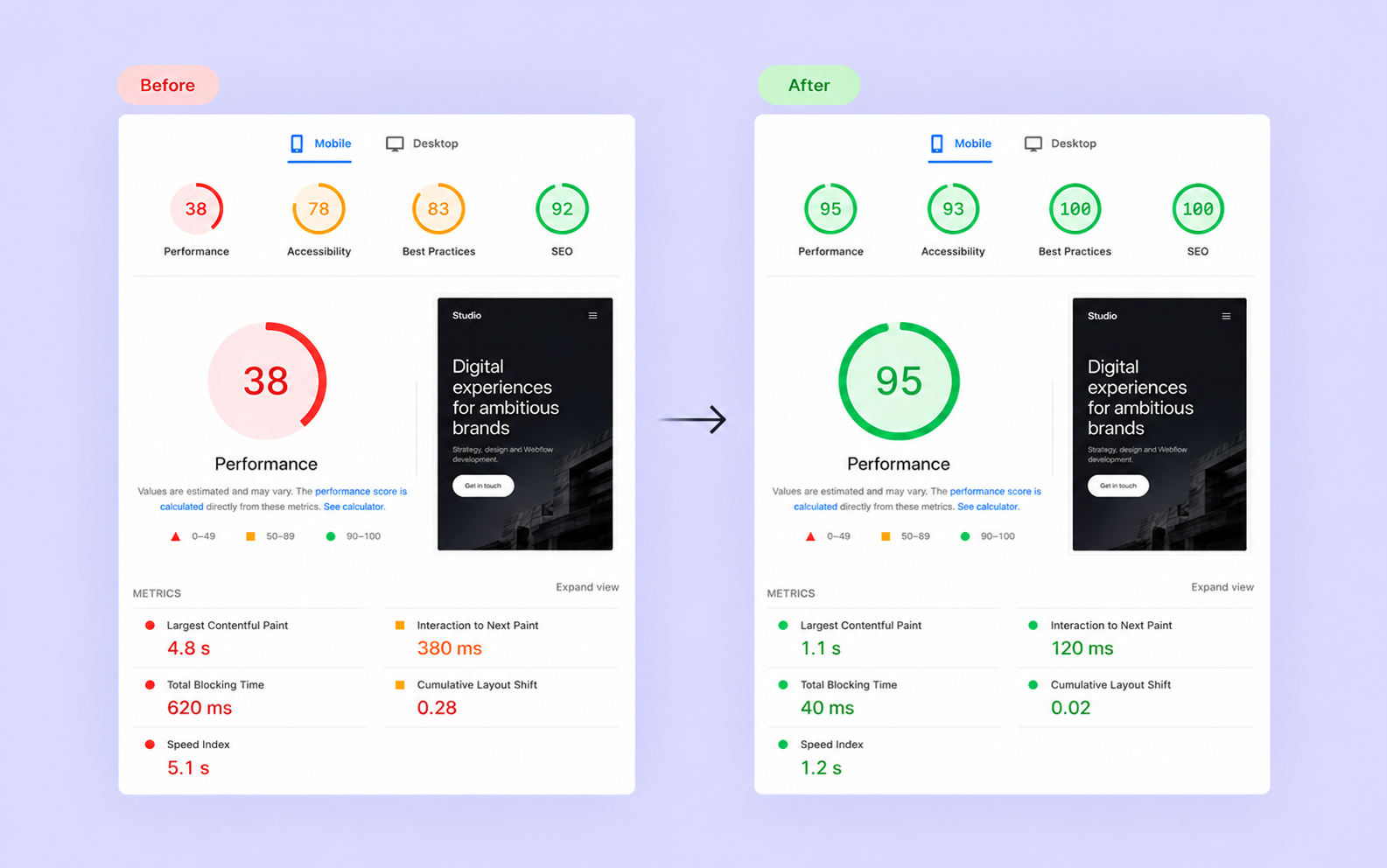
Webflow is capable of producing fast, well-optimized websites, but that doesn't mean every site built with it will automatically perform well. A relatively simple website can become unnecessarily slow because of oversized images, poorly optimized animations, excessive JavaScript or third-party integrations.
In most cases, the problem isn't Webflow itself. It's how the website has been built and what the browser needs to download and process before visitors can interact with it. Fortunately, many of these issues can be fixed without redesigning your website or moving to another platform.
Here's what I'd focus on when diagnosing and improving the performance of a Webflow website.
Understanding what's actually slowing down your website
Before making any changes, you need to understand where the problem is. Google PageSpeed Insights is a good starting point because it provides performance measurements for mobile and desktop, along with recommendations for improvement.
Pay particular attention to Google's Core Web Vitals. These measure how quickly the main content becomes visible (Largest Contentful Paint, or LCP), how responsive the page feels when someone interacts with it (Interaction to Next Paint, or INP), and how much the layout unexpectedly shifts while loading (Cumulative Layout Shift, or CLS). Google considers LCP of 2.5 seconds or less, INP of 200 milliseconds or less, and CLS of 0.1 or less to be good results.
It's also worth understanding the difference between laboratory tests and real-user data. Lighthouse runs tests under simulated conditions, while field data reflects actual experiences collected from Chrome users over a rolling 28-day period. A website might receive a relatively low Lighthouse score while still delivering a good experience to real visitors, so chasing a perfect 100 shouldn't be your main objective.
For more detailed analysis, I recommend WebPageTest or Chrome DevTools. Their network waterfall charts can help identify oversized resources, slow requests and scripts that delay rendering. Rather than applying every optimization suggestion you see, focus on the issues that have the greatest impact on the actual loading experience.
Images: the easiest place to start
Images are often responsible for a significant portion of a website's page weight. A high-resolution image might look great in Figma, but uploading the original 5 MB file directly to Webflow isn't necessarily the best approach, especially when it will be displayed at a fraction of its original size.
Webflow already handles some image optimization automatically. For supported images, it generates responsive variants so browsers can select a suitable resolution based on the device and display size. However, this doesn't apply equally to every image implementation. CSS background images, for example, don't benefit from Webflow's automatic responsive image generation in the same way as standard Image elements.
When possible, I prefer using regular Image elements with object-fit: cover instead of CSS backgrounds. This gives the browser more flexibility when selecting image resources and makes accessibility easier to manage. It also gives you greater control over loading behavior.
Another improvement is converting images to modern formats such as WebP or AVIF. Both generally offer better compression than traditional JPEG or PNG files, although the actual savings depend on the image. Webflow includes built-in tools for converting existing assets, so you don't necessarily need an external service.
Image loading behavior matters too. Webflow supports lazy loading, which delays downloading images until they're needed. This is useful for content further down the page, but it can hurt performance when applied to important above-the-fold images. Your main hero image, particularly if it's the largest visible element, should generally load immediately.
Finally, make sure images have defined dimensions or an appropriate aspect ratio. Otherwise, the browser may need to move surrounding content once an image finishes loading, increasing CLS and making the page feel unstable.
You can read more about how Webflow handles images in its official documentation.
Fonts and JavaScript: small decisions that add up
Fonts might seem insignificant compared to images, but they can also affect loading performance. Every font family, weight and style potentially adds another resource for the browser to download. If your design uses several typefaces with multiple weights, it's worth checking how many font files are actually being loaded.
For custom fonts, WOFF2 is generally the best choice because it offers good compression and broad browser support. I'd also review whether every uploaded weight is necessary. There's little reason to load six different font weights if the website only uses three.
Font loading behavior is another detail worth considering. Using font-display: swap allows the browser to display text using a fallback font while the custom font downloads. This avoids invisible text during loading, although you should choose fallback fonts carefully to minimize layout shifts when the final font appears.
JavaScript can have a much bigger impact, particularly on websites with several third-party integrations. Analytics tools, chat widgets, tracking pixels, cookie management solutions and animation libraries all add code that the browser needs to download, parse and execute.
Before trying to optimize these scripts, I'd check whether they're all still needed. It's surprisingly easy for a website to accumulate old integrations or load multiple libraries that perform similar tasks. Removing unnecessary code is often more effective than trying to optimize everything that's already there.
For scripts that aren't critical to initial rendering, defer or async can sometimes improve loading behavior. However, these attributes work differently, and using them incorrectly can break dependencies between scripts. Moving JavaScript to the bottom of the page also doesn't automatically solve performance problems if the code itself performs expensive operations.
Webflow has introduced additional performance options, including per-page JavaScript and asynchronous JavaScript loading. These can help reduce unnecessary resources and improve rendering performance, but they should be tested carefully when your website includes custom code or third-party libraries.
I wouldn't enable every optimization option without understanding what it does. A website that scores slightly higher in Lighthouse but has broken interactions isn't an improvement.
Animations and complex CMS structures
One of Webflow's biggest advantages is how much you can accomplish visually, especially when it comes to animations and interactions. With tools like GSAP, you can go even further and create experiences that would otherwise require considerable custom development.
However, animations need to be implemented carefully. Properties such as transform and opacity are generally more efficient to animate than properties that repeatedly trigger layout calculations, such as width, height or margin. This doesn't mean every transform animation is automatically performant, but choosing the right properties is a good starting point.
I'd also pay attention to when animation code runs. There's no reason to initialize complex animations for elements that aren't present on a particular page or to recalculate positions continuously when nothing has changed. For more advanced interactions, reducing unnecessary JavaScript execution can make a noticeable difference, particularly on mobile devices.
CMS-driven websites introduce their own challenges. If you're displaying dozens of blog posts, products or projects, loading every item at once may create unnecessary work for the browser. Pagination, sensible image loading and limiting the amount of rendered content can help keep larger Collection Lists manageable.
The same applies to custom filters and integrations. If a website uses JavaScript to process large amounts of CMS data, the implementation matters. A well-structured solution can remain responsive even with considerable functionality, while poorly optimized code can make relatively simple interactions feel slow.
The goal isn't to remove animations or avoid complex functionality. It's to make sure those features are implemented efficiently and don't compromise the experience for visitors.
Does Cloudflare make Webflow websites faster?
Cloudflare often comes up in discussions about website performance, and for good reason. Its global infrastructure provides content delivery, caching, security and edge computing capabilities that can be useful for more advanced websites.
However, Webflow already uses Cloudflare infrastructure for hosting. Since its infrastructure migration, newly created Webflow sites have been served through Cloudflare, meaning you don't necessarily need to add another Cloudflare configuration to benefit from its network.
For standard marketing websites, I'd focus on optimizing the website itself before introducing additional infrastructure. A CDN won't fix an oversized hero image, excessive JavaScript execution or inefficient animations.
That doesn't mean Cloudflare has no place in a Webflow project. I've worked with Cloudflare alongside Webflow on more complex implementations, particularly where custom routing, API integrations or additional infrastructure were required. In those situations, Cloudflare Workers and other services can extend what Webflow can do on its own.
Webflow also supports Cloudflare's Orange-to-Orange configuration, which allows compatible Cloudflare services to work alongside Webflow hosting. However, adding custom caching or proxy rules requires care. An incorrectly configured cache can serve outdated content or interfere with publishing changes.
For most websites, additional Cloudflare functionality should solve a specific technical requirement rather than be treated as a general performance optimization.
More information about this setup is available in Webflow's Cloudflare documentation.
What I'd prioritize when optimizing a Webflow website
If your Webflow website is performing poorly, I'd start with an audit rather than immediately changing settings. Run PageSpeed Insights, review the network waterfall and identify the resources that contribute most to loading time. Check whether your main images are properly sized, how your fonts are delivered and which JavaScript files are being loaded.
Next, look at how the website behaves once it's visible. Expensive animations, excessive DOM elements or scripts running repeatedly during scrolling can affect responsiveness even when the initial page load seems reasonably fast. This is particularly important for more complex Webflow websites with custom interactions and integrations.
I'd also review Webflow's built-in performance settings. Options such as code minification, per-page CSS and asynchronous JavaScript loading can help, but their impact depends on the website. Make changes individually where possible, test the functionality and measure the results again.
Webflow's Site Health Scan can help identify certain technical and configuration issues, although I wouldn't rely on it as the only performance testing tool.
Finally, remember that performance optimization isn't a one-time task. Adding a new analytics script, replacing a hero image or introducing another integration can affect loading times. It's worth checking performance periodically, particularly after significant website updates.
A fast website isn't simply one that gets 100 points in Lighthouse. It should load quickly, respond smoothly and remain usable across different devices and connections. For a well-built Webflow website, achieving that usually comes down to thoughtful implementation rather than complicated infrastructure or unnecessary workarounds.
Need a scalable website for your business?