When Cloudflare Makes Sense for a Webflow Website

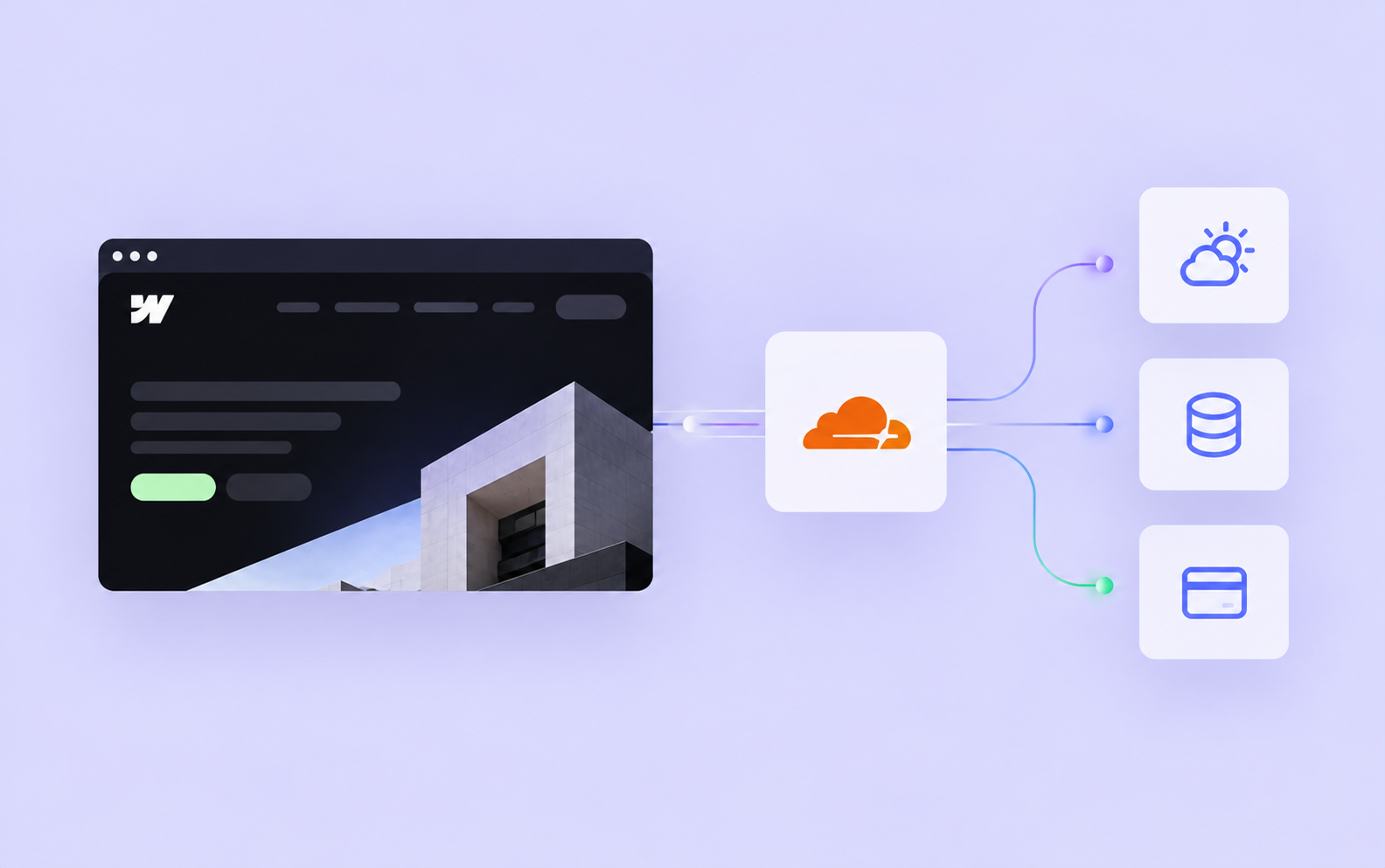
Webflow is a great platform for building websites, and for many projects, it already provides everything you need. You can create a fast, secure website with a CMS, animations, forms and hosting without having to manage any additional infrastructure.
But some projects need more than that. Maybe your website needs to communicate with an external system, process payments, display live information or handle custom logic that Webflow doesn't support natively. That's where tools like Cloudflare can become useful.
I've used Cloudflare alongside Webflow on several projects, but I wouldn't recommend it for every website. Adding another service means more things to configure, maintain and potentially troubleshoot. The question isn't whether Cloudflare is powerful enough. It's whether your project actually needs it.
Webflow already handles the basics
Before discussing what Cloudflare adds, it's worth understanding what Webflow already provides.
Webflow's hosting infrastructure now runs on Cloudflare, following a migration that started in 2025. This means websites already benefit from Cloudflare's global network, including content delivery and DDoS protection, without requiring a separate Cloudflare account.
Webflow also handles SSL certificates, hosting maintenance and many of the technical tasks that would otherwise require managing your own server. For a typical company website, portfolio or CMS-driven marketing site, that's usually more than enough.
This is an important distinction because Cloudflare is often recommended as a way to make Webflow websites faster. While additional Cloudflare features can help in certain situations, simply putting another proxy in front of Webflow doesn't guarantee better performance. In fact, incorrectly configured caching can cause problems with content updates.
So if a website is running slowly because of oversized images, excessive JavaScript or inefficient animations, that's where I'd start. Adding Cloudflare won't fix those problems.
You can read more about Webflow's hosting infrastructure in its official documentation.
Where Cloudflare becomes useful
For me, the most interesting part of Cloudflare isn't its CDN. It's the ability to extend Webflow with functionality that would otherwise require a separate backend.
Cloudflare Workers allow you to run JavaScript or TypeScript on Cloudflare's infrastructure without maintaining a traditional server. Depending on the project, a Worker can act as an API endpoint, process requests, communicate with external services or handle custom business logic.
Imagine a website that needs to display information from an external API. You could fetch that information directly from the browser, but this isn't always practical. The API might require a private key, return data in an inconvenient format or impose strict limits on how frequently it can be accessed.
A Cloudflare Worker can sit between the website and that API, fetch the information, transform it and return only what's needed. Sensitive credentials stay on the server side, and responses can be cached when appropriate.
The result is a Webflow website that can work with more complex data without needing a conventional backend application.
It's also worth mentioning that you don't need to put your entire Webflow website behind a Cloudflare proxy to use Workers. A Worker can operate as a separate API endpoint while the website itself continues using standard Webflow hosting.
Custom routing and security
Cloudflare can also be useful when a project requires more control over how requests are handled.
For example, some multilingual websites need URL structures that don't match the platform's default routing options. Workers can help rewrite or route requests, although this requires careful handling of redirects, canonical URLs and other SEO considerations.
Another use case is security. Cloudflare offers tools such as a Web Application Firewall (WAF), rate limiting and access policies. These can be particularly useful for protecting custom API endpoints, managing automated traffic or restricting access to certain resources.
For websites that need Cloudflare's traffic-management features in front of Webflow, there's an officially supported configuration called Orange-to-Orange (O2O). It allows compatible Cloudflare services to operate alongside Webflow hosting.
Not every Cloudflare feature works in every configuration, though, so I'd always check compatibility before recommending a particular setup.
Webflow explains the supported configuration in its O2O documentation. help.webflow.com
How I've used Cloudflare in real Webflow projects
Rather than going through every Cloudflare feature, I think it's more useful to show where it solved actual problems.
Zieleniec Sport Arena: live data and custom APIs
One of my more complex Webflow projects was Zieleniec Sport Arena, one of Poland's largest ski resorts.
The website needed much more than regular CMS functionality. Visitors wanted up-to-date information about ski slopes, operating lifts, snow conditions and local weather. The resort's team also needed a practical way to manage this information without constantly asking a developer to make changes.
I built a custom slope and lift management system alongside an integration with the resort's weather station. Cloudflare Workers handle communication with the external data source, transform the responses and cache the information to avoid unnecessary API requests.
I also developed a public API so third-party platforms can access the resort's current conditions.
Webflow handles the website and its content, while Cloudflare supports the additional logic and integrations. Each platform has a specific responsibility, and the client gets a system that's relatively straightforward to manage.
A custom checkout for an antique store
Another example is an online store for antiques, where every product is unique.
The main challenge wasn't building the storefront. It was making sure two customers couldn't purchase the same item simultaneously, while supporting payment methods such as BLIK.
I used Webflow for the frontend and CMS, with a custom checkout powered by Cloudflare and Stripe. The backend handles payment requests, product reservations and the logic needed to prevent an item from being sold twice.
This is a good example of why I sometimes combine Webflow with other technologies. The client gets a website that's easy to manage, while the more complicated functionality runs behind the scenes.
Neither project needed Cloudflare simply because it was built in Webflow. It was introduced to solve requirements that would have been difficult to implement using Webflow alone.
What about performance and bandwidth?
Cloudflare can also help with traffic management, but this is an area where I'd be careful about making broad promises.
Webflow hosting plans have bandwidth allowances, which can become relevant for websites with large amounts of traffic or particularly heavy assets. Depending on the architecture, Cloudflare can help reduce requests to external services or deliver certain resources more efficiently.
However, caching an entire Webflow website through an additional Cloudflare layer isn't something I'd enable automatically. Webflow already uses Cloudflare for hosting, and adding another cache can introduce synchronization problems. Cloudflare's own documentation specifically warns about the risks of caching HTML in Orange-to-Orange configurations.
For larger projects, I prefer to evaluate traffic patterns, bandwidth usage and hosting costs before deciding whether additional infrastructure is justified.
Zieleniec was a useful lesson in this regard. During peak season, the website can attract around 200,000 unique visitors per month, and bandwidth costs became a more important consideration than initially expected.
It's something I now pay closer attention to when planning websites with significant seasonal traffic. sergiobrusnyk.com
Is Cloudflare expensive?
Not necessarily. Cloudflare has a free plan that includes DNS management and basic security features, while Workers also have a free tier.
At the time of writing, Workers Free includes up to 100,000 requests per day, subject to additional usage and resource limits. The Workers Paid plan starts at $5 per month, with usage-based charges beyond the included allowances. Some security, performance and other Cloudflare services have separate pricing.
For smaller integrations, the infrastructure costs can therefore be relatively low. But I'd also consider development and maintenance costs, especially if a project relies on custom Workers, additional storage or several connected services.
A solution that costs only a few dollars per month to host can still be unnecessarily expensive if it introduces complexity that the project doesn't need.
You can find the current limits and pricing in Cloudflare's documentation. Cloudflare Docs
When I wouldn't use Cloudflare
If I'm building a straightforward company website with a few CMS Collections, a contact form and some animations, I probably wouldn't introduce additional Cloudflare infrastructure.
Webflow already provides the functionality needed for that kind of project, and keeping the setup simple has real advantages. There are fewer dependencies, less maintenance and fewer opportunities for something to break.
I'd consider Cloudflare when there's a specific requirement: custom backend logic, secure API integrations, unusual routing, advanced security controls or functionality that Webflow can't handle efficiently on its own.
Even then, Cloudflare isn't necessarily the only solution. Sometimes another service or a native Webflow feature is a better fit. The technology should follow the requirements, not the other way around.
That's generally how I approach Webflow development. I want clients to have websites that are technically capable but still practical to maintain. If the project needs a more advanced architecture, I'm comfortable building it. If it doesn't, I'd rather keep things simple.
A good technical solution isn't the one with the most tools. It's the one that solves the problem without introducing unnecessary complexity.
Need a scalable website for your business?